Card layouts

With card layouts, you can manage the arrangement of fields in cards. A deck can have one or several card layouts.
Having several card layouts allows you to retrieve knowledge from different pieces of information. For example, you can have a front and a back side in one layout, and reverse them in another.
Each version of a card is called a card variant. It has its own study schedule.
Editing card layouts
- To create a new layout, click .
- To edit a layout, click below the layout you want to modify.
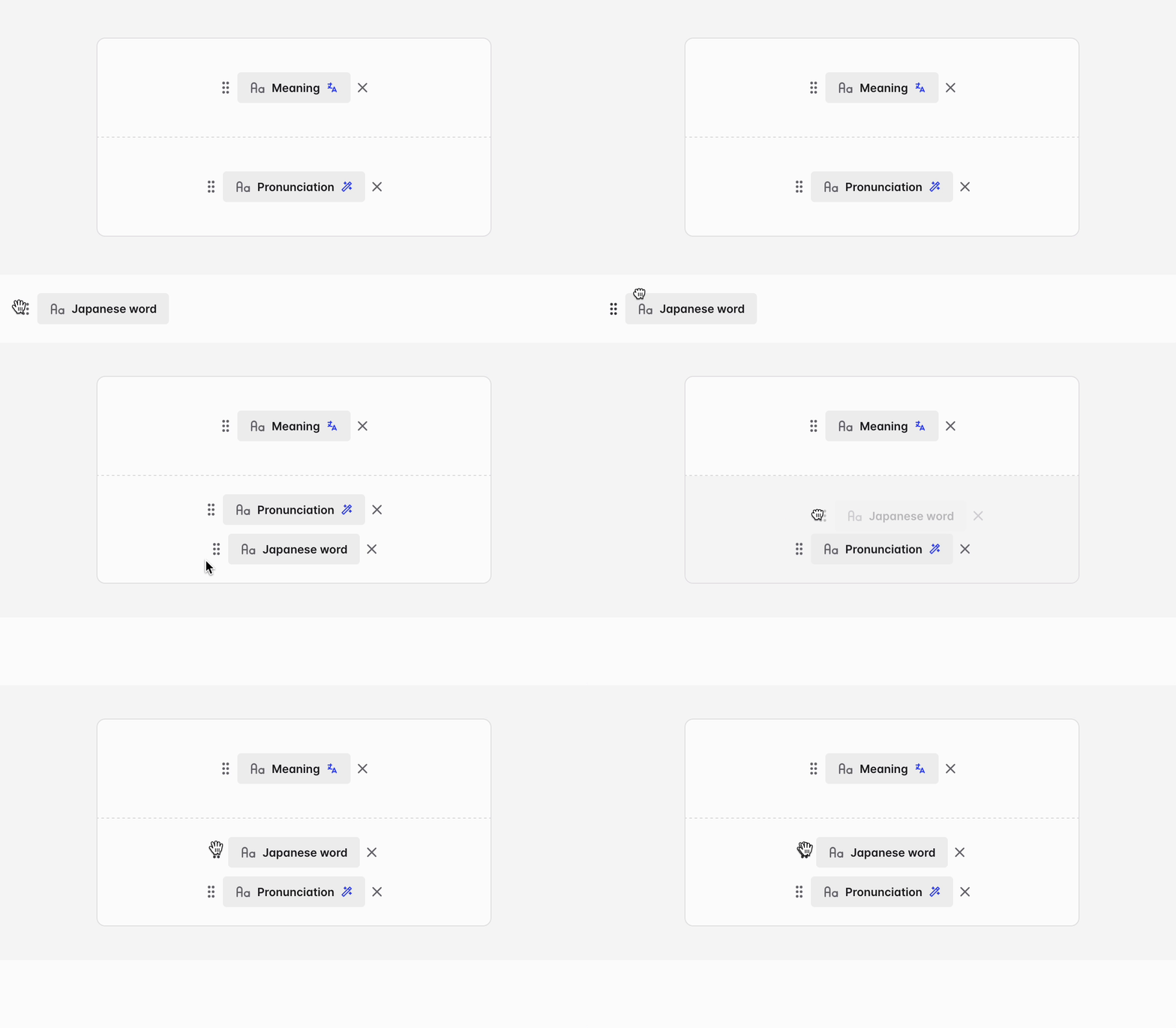
When creating or editing a layout, you can drag and drop fields to the front or back side of the card.
For text-based fields, you can also choose from a few styling options.
Card layouts have two limitations:
- The front side can contain from 1 to 5 fields.
- The back side can contain from 1 to 12 fields.
Primary card layout
The primary card layout is the default layout used to display your cards.
There is always exactly one primary card layout in a deck. To delete it, you need to select a new primary layout first.
Activate or deactivate a card layout
When you activate a layout, all its card variants are added to your reviews. Therefore, activating a layout increases the number of reviews to be scheduled.
When you deactivate a layout, its card variants are removed from your reviews. Their progress data is not deleted, and they resume at the same stage if you reactivate the layout.
The primary layout can't be deactivated.