Managing cards
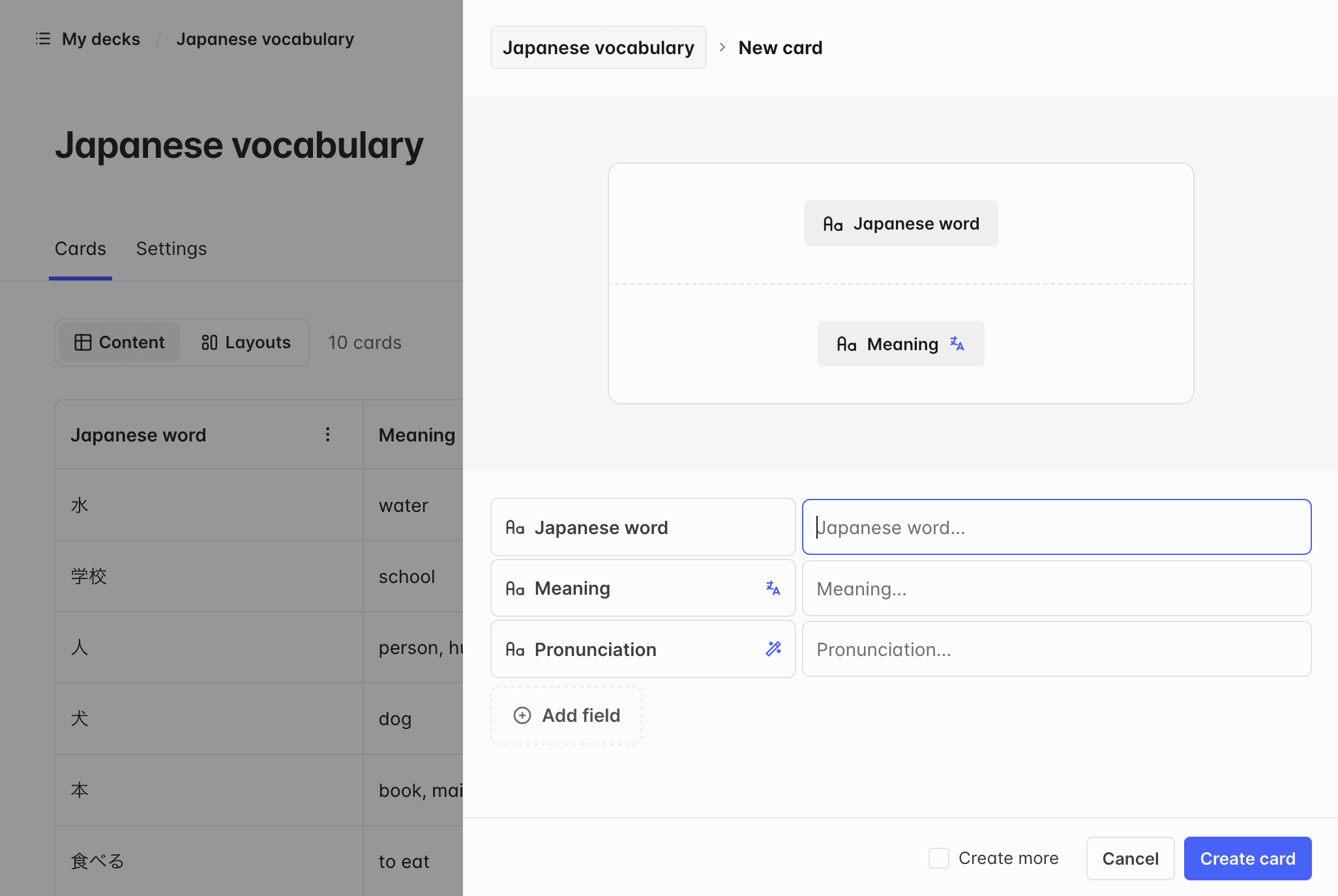
Creating cards
You can create a new card at any time by clicking the icon in the side menu, or the button on the main page of a deck.
On mobile, a floating button appears at the bottom right of the screen instead.
Currently, a deck can contain up to 5,000 cards.
Updating cards
- On the main page of a deck: Click the row of a card in the cards list.
- During a review: Click the icon, then Update.
Deleting cards
In the cards table, click , then Delete. You'll be asked to confirm.
Import CSV
You can import a CSV file to create or update multiple cards at once.
- On the main page of a deck, click the button.
- Click the button to access the CSV import page.
- Select whether you want to Create new cards or Update existing cards.
After selecting your CSV file, you can map the columns to the deck fields. If you want to update existing cards, you also need to specify the column used to match the cards.
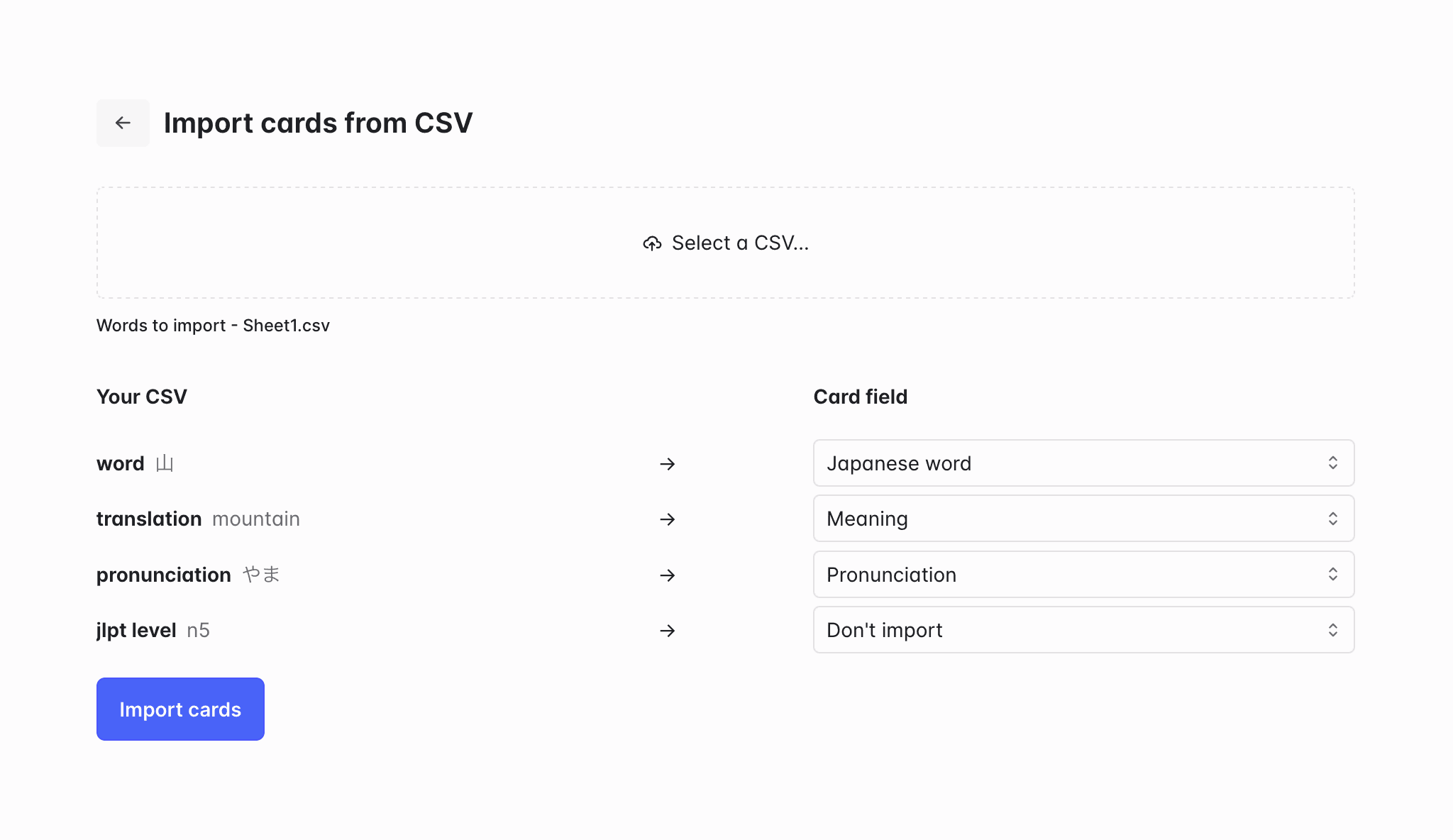
The first row is treated as the header and is not imported as a card.